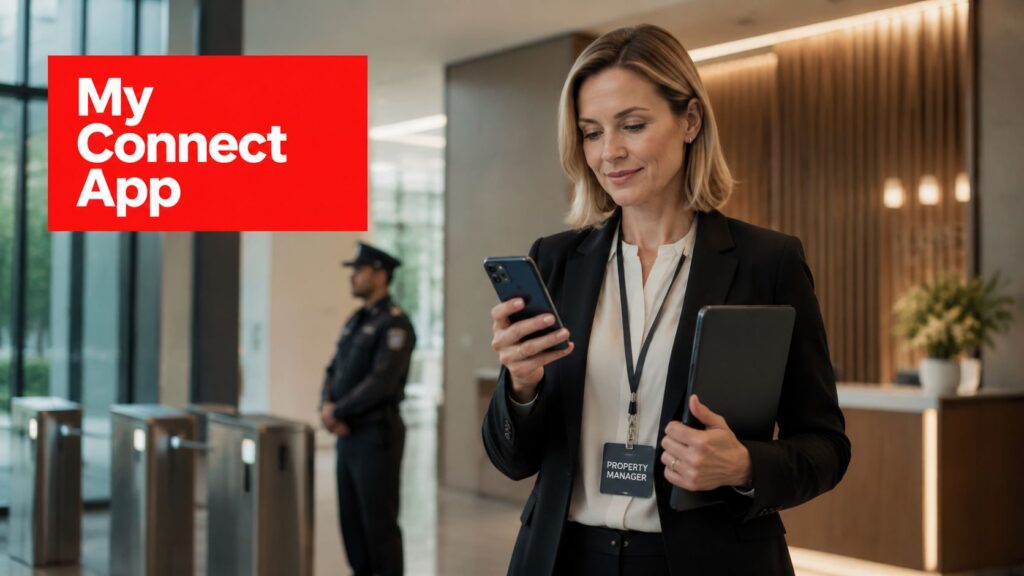
Monday morning always finds the same problem first. A property manager opens her phone, checks overnight activity across three sites, and has to decide what needs attention before the first call starts. In practice, the My Connect app is less about browsing reports and more about turning guard activity into decisions, documentation, and follow-up that can stand up later.
For teams managing residential communities, retail centers, or construction sites, that daily rhythm matters. The app is most useful when it sits between the field and the office, with patrol notes, incident photos, and real-time alerts landing where a manager can act on them quickly. That's the difference between a stack of disconnected updates and an operating tool people use.
What the My Connect App Does for Property Teams
By the time coffee is poured, the app has usually already done its first job. A property manager opens the dashboard, sees overnight guard tour activity from multiple sites, and scans a Daily Activity Report flagged with an incident before the inbox fills up. That is the point of a tool like this, it turns officer activity into property-manager-ready evidence.
What shows up in the morning review
The app is built around historical performance tracking, not a simple activity viewer. The ConnectStats description shows the kind of detail that matters in the world, lap breakdowns, maps with gradient-based overlays, graphs, statistics, calendar views, search, monthly and weekly summaries, and trend analysis through scatter plots and trend lines for historical and track data ConnectStats in the App Store.
That kind of structure is useful for property work because the manager side needs to answer simple questions fast. Did the checkpoint get hit, did the officer add a note, was there a photo, and does the report show a gap that needs follow-up? If you manage patrols, you want those answers in one place, not buried in text threads or separate email chains.
A good report screen also changes how managers work with insurance, resident complaints, and vendor issues. A clean incident log can be forwarded, saved, or compared against prior nights without reconstructing the story from memory. That's why the app feels less like a convenience layer and more like a daily control point.
Practical rule: if a report can't be reviewed before the first site visit, it's not helping operations enough.
For readers who want the broader monitoring model behind that workflow, the basics of security monitoring explain why the report side matters as much as the guard side.
Downloading, Registering, and Logging In
The first mistake people make is treating setup like a personal app install. A property team needs the account tied to work identity, work notifications, and the right sites from day one. That's especially true if you're responsible for a portfolio instead of a single building.
Start with the right app and the right account
The safest first move is to download the app from the official store listing that matches the device you use. On iPhone and iPad, the App Store listing for MyConnect describes it as a companion app for the Connect service, with desk-phone-style features on mobile MyConnect for iPhone and iPad. For Android, teams often encounter similarly named products, so ownership and use case need to be checked before anyone signs in.
Use a work email, not a personal one. That keeps the account aligned with role changes, support tickets, and offboarding if someone leaves the company. It also makes it easier to separate assistant manager access from full manager access when the portfolio grows.
Accept notifications the first time, not later
Push permissions matter more than they seem. If a user skips notification prompts on the first launch, the app may still work, but real-time alerts won't feel real-time anymore. A manager who only checks the app when she remembers to open it has already lost the value of the workflow.
The cleanest setup usually looks like this:
- Install from the official store listing. Match the device and the actual service owner.
- Sign in with the work account. Don't mix personal credentials into an operations system.
- Allow notifications immediately. That keeps alerts, report updates, and escalation messages visible.
- Turn on two-step verification if the account supports it. It's a basic control, but it closes an avoidable gap.
- Save the first screens you'll use most. For most managers, that means site list, activity timeline, and incident history.
Small field lesson: most “login problems” aren't app problems. They're account setup problems that were ignored during onboarding.
For multi-site portfolios, registration should also reflect who needs to see what. A regional manager may need broad access, while a site lead only needs one property and a narrow set of notifications. That's not just cleaner, it reduces noise.
Navigating the Dashboard and Reading Guard Tour Reports
Once the app opens cleanly, the main question becomes simple. What does the report tell you at a glance, and what do you need to open before moving on? Good dashboards make that decision easy because they show the site list first, then the activity timeline, then the report detail when you need proof.
Read the activity from the top down
A guard tour report should tell a clear story. Start with the property name, then the shift window, then the checkpoint scans, and then any attached notes or photos. If the sequence is messy, the report gets harder to trust, even if the raw data is technically there.
That's where time stamps and site filters matter. A manager overseeing retail, residential, and construction locations doesn't have time to open every line item manually. She needs to sort by date, site, or officer and get straight to the property that needs attention.
What a clean report looks like
A report with no issue usually reads like a completed patrol cycle. The checkpoint scans are present, the notes are short and direct, and any photo attachments match the stated event. An incident flag changes that picture immediately, because now the manager is looking for what happened, who saw it, and whether the next step is internal follow-up or escalation.
Useful report review habits look like this:
- Check the shift boundaries first. Make sure the report covers the right patrol window.
- Open the attachments, not just the summary. Photos and notes often carry the operational detail.
- Compare one site against another. Portfolio work only makes sense when you can spot patterns.
- Export only the relevant report. Keep the insurance file or board packet focused on the incident that matters.
For managers who want a broader view of how reporting fits into oversight, the remote video monitoring model shows why reports, camera review, and patrol documentation work best when they support one another.
Real-Time Alerts, Incident Uploads, and Photo Documentation
This is the part of the workflow that earns trust. A guard spots a medical issue, a broken gate, or a vandalism event, and the alert reaches the manager with enough detail to make a decision without playing phone tag. Real-time reporting only matters if it gets the right person quickly and includes the context needed to act.
What officers should send from the field
The best incident uploads are short, specific, and tied to the event in front of the officer. A photo, a note, and a timestamp do far more work than a long paragraph of unclear observations. If the app allows structured incident history, that becomes the place where the record stays searchable for later review.
That matters in after-hours incidents because the office side may not see the site for hours. A manager can acknowledge the alert, escalate it, or close it out from the phone instead of waiting until the next morning. In retail, that often means validating a police report or a claim file with a single photo and a precise note while the issue is still fresh.
Keep the message tight
The operational rule is simple. Use the active message or report field for what the response team needs, then leave out anything unrelated. The MyConnect marketplace disclosure says the app can access personal information in the active message, including phone numbers, postal addresses, and URLs, but it can't read or modify other mailbox items MyConnect marketplace listing. That narrow scope is helpful, but it also means message discipline matters.
If you want a useful comparison point for how systems should route and surface operational data, resume screening benefits and ROI is a good example of why structured inputs beat messy free text in any review workflow.
How My Connect Works with the SOC and Guard Tour System
A field app is only one layer of the job. The stronger model is the one that connects the officer, the guard tour system, and the Security Operations Center so nobody is relying on a single set of eyes. That is where accountability gets real, because the report, the scan, and the escalation path all have to line up.
Why dual oversight catches more mistakes
Apple's App Store Connect framework is a useful reminder that serious operational systems are measured through concrete metrics like Total Downloads, Active Devices, Sessions, Retention Rate, and Conversion Rate, with clear definitions for acquisition and repeat use Apple App Store Connect analytics. The point for property teams is not the marketing side, it's the discipline of measurable oversight. Good field reporting should be just as definable, reviewable, and repeatable.
In a live security operation, the officer logs the event, the GTMS verifies the checkpoint scan, and the SOC watches for missed activity or wellness concerns. That way, a delayed scan doesn't sit unnoticed until the end of shift. Someone sees it, questions it, and resolves it while the issue is still active.
The operational chain that actually helps
A clean setup usually includes GPS-enabled patrol verification, report review, and escalation support. If a guard misses a checkpoint or stops responding, the SOC can dispatch backup or start a wellness check instead of assuming everything is fine. That's the difference between a digital log and a managed security process.
For a deeper look at how systems can pass incidents, alerts, and workflow data between platforms, connect your risk systems via API is worth reviewing. The integration idea matters because property teams rarely work inside one tool alone, and the report only stays useful if it reaches the right decision-maker in time.
For managers comparing reporting stacks, the security analytics platform angle is relevant because it shows how audit trails become more valuable when the field app and the SOC are treated as one operating chain.
Troubleshooting the Most Common App Issues
Most app complaints fall into a small set of patterns. The fix is usually simple once you know whether the problem is account setup, filtering, notifications, device settings, or connectivity. That saves a support ticket and gets the manager back to the report faster.
Five issues that show up over and over
- Login failure after a password reset. The symptom is a user who can't get back in after changing credentials. The likely cause is an old cached token, and the fix is to clear the app cache or sign out fully before trying again.
- Missing tour reports. The symptom is an empty dashboard or a site that looks quiet when it wasn't. The likely cause is the wrong site or shift filter, and the fix is to verify the property and date range first.
- Late or missing real-time alerts. The symptom is that the incident eventually appears, but too late to be useful. The likely cause is notification permission or background refresh settings, and the fix is to enable both on the device.
- Photo upload errors. The symptom is a report that won't attach an image from the field. The likely cause is weak connectivity or storage limits, and the fix is to confirm signal and free up device space.
- Push notifications with no sound. The symptom is that alerts arrive without sound. The likely cause is Focus mode or another device-level silence setting, and the fix is to check notification sound and focus settings.
What to check before opening a ticket
Start with the device, then the account, then the filter. Most users jump straight to support when the app is doing what the device told it to do. A quick review of permissions, time settings, and the active site selection usually solves the issue.
If the problem remains, send support the site name, timestamp, screenshot, and a short note about what the officer or manager was trying to do. That gives the support team something usable instead of a vague “it doesn't work” message.
Security Best Practices and When to Contact Support
The safest operations teams treat the app like a live security tool, not just a convenience layer. That means strong passwords, two-step verification, role-based access, and clear offboarding when a phone changes hands or an officer leaves the company. It also means understanding that the app works with the active operational message, so incident notes should stay short, structured, and free of unrelated personal details.
A lost device should be handled like any other access event. Revoke access quickly, confirm which user profile was signed in, and remove credentials before the next shift starts. Assistant managers only need the permissions required for their role, because overly broad access creates noise and avoidable exposure.
Keep the report readable for the next person who has to act on it.
When support is needed, include the site name, timestamp, screenshot, and what the user was doing at the time. That makes triage faster, especially when the issue is tied to a single property or a single incident. Urgent after-hours concerns should go through the SOC path already in place, because field incidents don't wait for business hours.
If your team is comparing workflows across residential, retail, and construction sites, the right next step is to look at how the app fits into patrol discipline, incident review, and escalation. Overton Security can help property teams align guard tours, SOC oversight, and reporting habits into one accountable process, and you can start that conversation at Overton Security.